Step-by-step guide · Verified site workflow
How to Do the Broom Riding Trend From One Photo
Prepare one clear person or pet photo, choose a six-second action, select the output quality, and review the full vertical MP4 before sharing.
Open the generator, choose Parallel Commute or Flyby Sign Gag, upload one authorized photo, select 480p or 720p, and submit. You do not need to write a prompt, pose on a broom, or upload a road background.
The output
What does the broom riding generator make?
It creates a short 9:16 MP4 built around one of two prepared road actions. Parallel Commute holds the rider beside the passenger window and then sends them ahead through the intersection. Flyby Sign Gag uses a faster pass and a stylized roadside collision.
Before you upload
Choose a photo that gives the subject room to move
The best input is an ordinary, well-lit photo with one clear subject and a readable face or head. A natural background is fine because the system uses the photo for the subject rather than copying the whole scene.
| Use | Avoid | Why |
|---|---|---|
| Front or three-quarter view | Face turned completely away | The model needs readable identity features |
| Visible torso and limbs | Tight head-only crop | The action must place a body on the broom |
| Even natural light | Heavy shadow or blur | Clear edges reduce identity drift |
| One main subject | Crowded group photo | The rider assignment stays unambiguous |
A witch costume is optional. Everyday clothing works and often makes the “normal commute on a broom” contrast easier to read.
The workflow
Make the broom riding trend in five steps
- 01
Choose one clear subject photo
Use an everyday photo of one person or pet. Keep the face, head, and body readable. You do not need a broom, costume, riding pose, white background, or environment upload.
- 02
Choose the action
Parallel Commute keeps the rider beside the passenger window before the fly-away. Flyby Sign Gag adds a comic roadside ending. Both current presets are 6 seconds and vertical.
- 03
Choose 480p or 720p
Standard 480p costs 10 credits. HD 720p costs 20 credits. The selected cost is shown before submission.
- 04
Confirm permission and create
Confirm that you may use the photo, sign in if asked, and submit once. The prepared action controls the shot, so this workflow does not require a written prompt or a separate road image.
- 05
Review before downloading
Watch the complete result. Check the subject, broom contact, road continuity, and ending. Download the MP4 only after it matches the version you want to share.
While it runs
Check the task instead of submitting duplicates
A submitted job has a task state. Keep the same account, return to the generator or My Creations, and check the existing job before starting another one.
| Status | What it means | What to do |
|---|---|---|
| Queued or processing | The task is still running | Wait and check the same job again |
| Ready | The MP4 is available | Play the full result, then download |
| Failed | The task did not complete | Read the message and confirm credit return before retrying |
| Cancelled | The job stopped before completion | Review the account record before another submission |
Verified pair
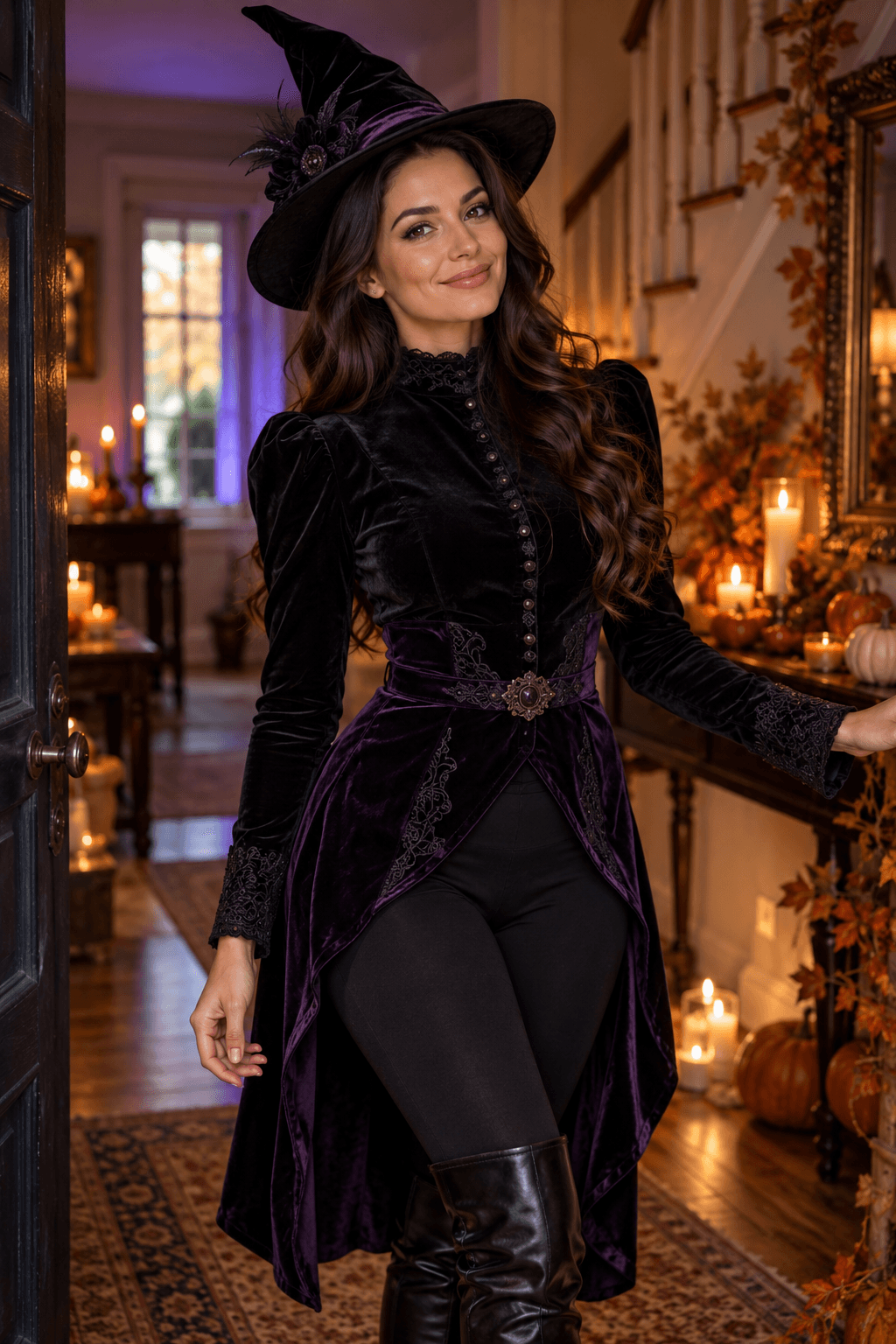
See the source photo beside its actual result
This pair was generated under the current site contract and passed the recorded frame review. It demonstrates one accepted outcome, not a guarantee for every photo.
Quality check
Review identity, broom contact, and continuity
Watch the whole clip once, then scrub through the side-window beat. A good result should keep one subject and one broom, preserve a readable profile, and move through one continuous road pass.
The face changes
Use a sharper source with an uncovered face and even light. Extreme angles, sunglasses, or a very small face make identity harder to preserve.
The body does not sit on the broom
Choose a photo with a readable torso and limbs. Avoid heavy crops, crossed foreground objects, or a pose that hides the subject's lower body.
The broom duplicates or bends
Review the side-window beat frame by frame. Generation can vary, so retry only when the contact error changes the central idea.
The road or ending jumps
Check for a repeated entrance, camera reset, sudden cut, or extra rider. A clean result should read as one continuous pass.
Questions
Common broom riding tutorial questions
Do I need a prompt?
No. The current workflow uses a prepared action reference. Choose a preset and upload the subject photo.
Do I need CapCut?
No. The site creates a downloadable MP4. You can import it into CapCut later for captions, music, trimming, or other edits.
Can I use a pet photo?
Yes. A current pet sample has passed review, but four-legged anatomy and paw-to-broom contact can still vary.
Should the source photo show a witch costume?
No. Ordinary clothing is allowed and often strengthens the everyday-commute joke.
Can I upload a background image?
No. The current input is the subject photo. The road environment comes from the selected action preset.
What happens if generation fails?
Check the task status before submitting again. Failed or cancelled tasks should follow the credit-return behavior shown in your account.
For the name, shot structure, and common variants, read the My Ride Is Here trend explainer.